
No products in the cart.

Free aaPanel Mastery: Complete Guide to Modern Web Hosting
in hosting, WordPress Training on November 30, 2025Free aaPanel Mastery: Complete Guide to Modern Web Hosting
1. Introduction to aaPanel
aaPanel is a free, open-source control panel designed for server and web hosting management. It simplifies server administration by providing a **graphical dashboard** for managing websites, databases, security, and server resources without the need for complex command-line tasks.
aaPanel supports Linux distributions such as CentOS, Ubuntu, and Debian, and allows one-click deployment of **LNMP (Linux, Nginx, MySQL, PHP)** or **LAMP (Linux, Apache, MySQL, PHP)** stacks.
Whether you are a beginner managing your first website or a professional running multiple servers, aaPanel provides a flexible and efficient platform.
2. Installing aaPanel Step by Step
Follow these steps to install aaPanel on your server:
- Connect to your server using SSH.
- Update your system packages:
sudo apt update && sudo apt upgrade -y # Ubuntu/Debiansudo yum update -y # CentOS - Download and run the aaPanel installation script:
wget -O install.sh http://www.aapanel.com/script/install-ubuntu_6.0_en.sh && bash install.sh - Follow the on-screen instructions and set up your admin credentials.
- Access the aaPanel dashboard via the provided IP and port (e.g.,
http://your-server-ip:8888). - Save your login information securely for future access.
3. Deploying Web Stack (Nginx/Apache, PHP, MySQL)
aaPanel allows one-click deployment of server stacks:
- Nginx/Apache: Choose the web server type suitable for your website. Nginx is recommended for performance and scalability, Apache for compatibility.
- PHP: Install multiple PHP versions and switch between them per site.
- MySQL/MariaDB: Deploy your database engine, configure user accounts, and secure the root password.
- Optional Tools: phpMyAdmin, Redis, Memcached for caching, and FTP/SFTP server setup.
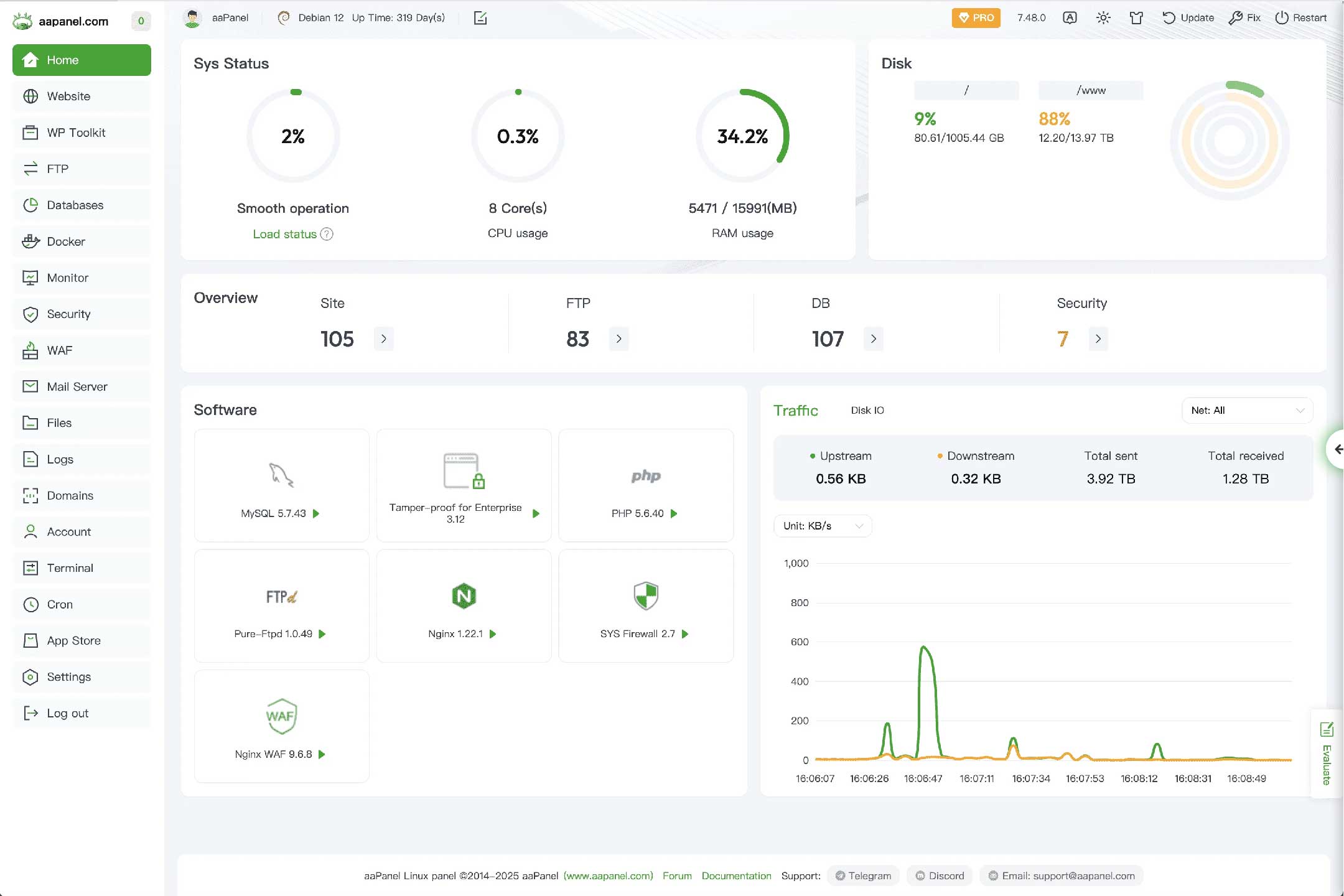
4. aaPanel Dashboard Overview
The dashboard provides a visual interface to manage your server:
- Website Management: Add, edit, or remove websites.
- Database Management: Manage MySQL/MariaDB databases with phpMyAdmin.
- Security Settings: Firewall, SSL certificates, and IP blocking.
- System Monitoring: CPU, RAM, disk usage, and real-time logs.
- Task Scheduling: Cron jobs and automated scripts.
Pro Tip: Take screenshots of your dashboard for reference before making major changes.
5. Setting Up Websites and Domains
- Navigate to Website > Add Site in the dashboard.
- Enter your domain, root directory, and select PHP version.
- Enable SSL using Let’s Encrypt for HTTPS support.
- Deploy WordPress or custom site files using File Manager or FTP.
- Configure database connections if needed.
- Test the website to ensure it is fully functional.
6. Advanced Security and Backup
- Enable the built-in firewall and configure rules to block common attacks.
- Use Fail2Ban to prevent brute-force login attempts.
- Set up automated backups for databases and files using aaPanel’s backup system.
- Regularly download backup copies to external storage.
- Enable SSL certificates for all domains.
- Monitor logs for suspicious activity.
7. Performance Optimization Tips
- Enable caching modules (Redis, Memcached) for dynamic content.
- Use Nginx with Gzip compression and HTTP/2 for faster loading.
- Optimize MySQL/MariaDB databases using aaPanel optimization tools.
- Use CDN services for global delivery of static content.
- Regularly monitor server load and adjust PHP-FPM workers accordingly.
8. Integrating WordPress with aaPanel
aaPanel makes it easy to deploy WordPress:
- Install WordPress via the one-click app installer.
- Set the database and admin credentials during setup.
- Enable caching plugins like W3 Total Cache or LiteSpeed Cache for speed.
- Configure SSL and security plugins for HTTPS and login protection.
- Use the dashboard to monitor site performance and updates.
Tip: Use staging environments to test updates before applying to live WordPress sites.
9. Advanced Tips and Plugins
- Use Docker for isolated app deployments.
- Automate updates and backups with task scheduling.
- Integrate AI-based monitoring tools for visitor analytics.
- Set up multi-domain hosting with separate PHP versions.
- Regularly review security audits and performance reports.
10. Conclusion
aaPanel is a **free, powerful, and intuitive control panel** that makes server and website management simple for everyone. From beginners to advanced webmasters, it provides all the tools to deploy, secure, optimize, and monitor websites efficiently.
By following this guide, you can leverage aaPanel for free and manage professional websites with confidence in 2025 and beyond.