
No products in the cart.
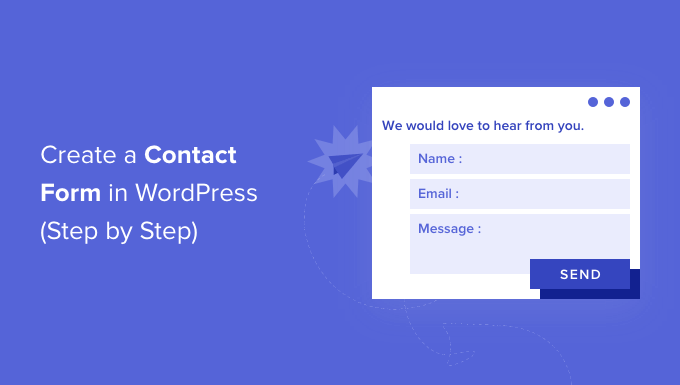
How to Create a Professional Contact Form in WordPress
in wordpress plugin, WordPress Training on October 31, 2025How to Create a Professional Contact Form in WordPress (Step-by-Step Tutorial)
Table of Contents
- Introduction
- Step 1: Install Contact Form 7 Plugin
- Step 2: Create a New Contact Form
- Step 3: Add the Form to a Page
- Step 4: Configure Email Settings
- Step 5: Style Your Contact Form
- Step 6: Fix Email Delivery Issues
- Security Tips
- Conclusion
Introduction
A contact form is essential for every WordPress website. It gives your visitors a simple way to reach you, request support, or make business inquiries — without exposing your email address.
In this guide from WP Needs, you’ll learn step by step how to create a professional WordPress contact form using the popular Contact Form 7 plugin, configure email delivery, and style it for a clean, modern look.
Step 1: Install Contact Form 7 Plugin
- From your WordPress dashboard, go to Plugins → Add New.
- Search for “Contact Form 7.”
- Click Install Now and then Activate.
- A new menu called Contact will appear in your dashboard.
💡 Pro Tip: Always download plugins from the official WordPress repository to ensure security and compatibility.
Step 2: Create a New Contact Form
- Go to Contact → Add New.
- Enter a title such as “Website Contact Form.”
- Add your fields:
[text* your-name placeholder "Your Name"] [email* your-email placeholder "Your Email"] [textarea your-message placeholder "Your Message"] [submit "Send Message"] - Save the form and copy the shortcode shown at the top.
Step 3: Add the Form to a Page
- Open your Contact Us page or create a new one.
- Paste the shortcode inside the page content or Elementor widget:
Error: Contact form not found.
- Update and preview your page — your form is ready!
- Using Elementor or Gutenberg? You can insert the shortcode block directly without editing the code.
Step 4: Configure Email Settings
To receive messages properly:
- Open your form → click the Mail tab.
- In the “To” field, enter your email address.
- Customize the Subject and Message Body if needed.
- Click Save.
If you use multiple recipients, separate emails with commas.
Step 5: Style Your Contact Form
To make your form look clean and professional:
- Add custom CSS in your WordPress Customizer.
- Use the Contact Form 7 Styler plugin for Elementor or Divi.
- Keep your form consistent with your brand colors and button styles.
Example CSS snippet:
.wpcf7 input, .wpcf7 textarea {
  border-radius: 8px;
  padding: 10px;
  width: 100%;
}
.wpcf7-submit {
  background-color: #0073aa;
  color: #fff;
  border-radius: 6px;
  padding: 10px 20px;
}
Step 6: Fix Email Delivery Issues
If emails aren’t reaching your inbox:
- Install WP Mail SMTP.
- Configure it with Gmail, SendGrid, or Mailgun SMTP settings.
- Send a test message to confirm everything works.
- Many hosting servers block PHP mail — SMTP fixes this issue permanently.
Security Tips
- Enable Google reCAPTCHA v3 to reduce spam submissions.
- Keep the Contact Form 7 plugin and WordPress core updated.
- Avoid using your admin email for forms — use a dedicated mailbox instead.
Conclusion
You’ve just created a fully functional and secure contact form in WordPress — ready to receive messages directly in your inbox.
This simple setup improves user trust, engagement, and overall site professionalism.
For premium plugins that make your WordPress site faster, safer, and more powerful, visit WP Needs — your trusted marketplace for WordPress tools and resources.